
Create a Smart List
A Smart List adds the fans who match your conditions, like total spent, and takes out those who stop matching. VENUZ keeps it up to date.
Before you start
- Who can do this
- Owners and Admins, or anyone with the Manage lists permission
- You need
- Smart Lists turned on for your agency. If New list only offers Manual list, they are off
- Works on
- A computer or a tablet
Start a Smart List#
- In the top bar, open Growth → Fans list.
- Pick the creator in the list on the left.
- Click New list.
- Click Smart list.

Name it and set its conditions#
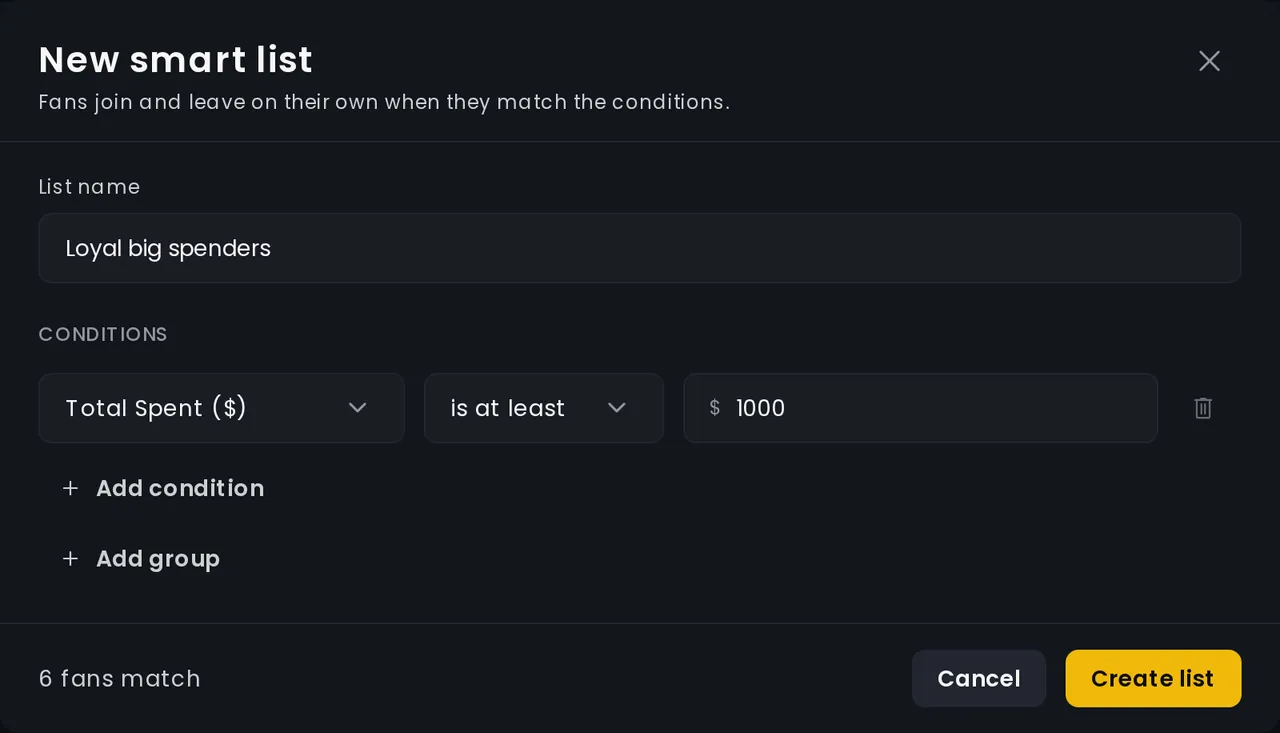
- In List name, type a name your team will recognize, up to 100 characters.
- Under Conditions, set the first rule. Pick the field (Total Spent ($) to start with), how it compares and the value.Change a condition and the bottom of the window counts the fans who match.
- To add another rule, click Add condition. Above the conditions, choose whether fans must match all of them or any of them.
- Click Create list.VENUZ starts adding the fans who match.
What you can check#
How much a fan has spent, whether they are subscribed and set to renew, how long they have been subscribed, when they were last active, whether they are a creator too and, once VENUZ knows your fans’ languages, their language.
A group holds up to 10 conditions. Click Add group for another one. You can have up to 10 groups.
A Total Spent condition needs a minimum of at least $1, and a rule can match up to 19,999 fans. The window tells you if your rule goes past either.
After you create it#
VENUZ fills the list in batches, so a big list can take hours. While it fills, the list shows how many fans are in so far.
A mass message reaches only the fans already in the list. See Send a mass message.
The list then says how many match the rule but aren’t in it.
Common questions#
How often it updates
VENUZ checks each Smart List again every 1 to 6 hours, more often while fans move in and out. When you open a list, it shows its own interval.
Update it now
Open the list and click More, then Refresh now.
Fans who stop matching
They are taken out. If an update would take out 50% or more of the list (10 fans or more), VENUZ waits instead. When you click Refresh now, an Owner or Admin can confirm it.
Change who is in it
You can’t add or remove fans by hand in a Smart List. To change who is in it, open it and click More, then Edit list.
Message the fans in it
Message list, inside the list, opens a new mass message for it. It needs the View mass messages and Automate mass messages permissions.
Where to go next
Couldn’t send that. Try again.
Still stuck?
Write to us and a person from the VENUZ team answers. Tell us the creator and what you were trying to do.